UAN Activation for Your First Job A lot of the guidance floating around still describes UAN activation as an OTP sent to your phone, or something your employer sets up for you. Since 1 August 2025, that’s not how it works for most new employees. If you’re about to join your first job and PF comes up, this is the version worth knowing.
What actually happens now
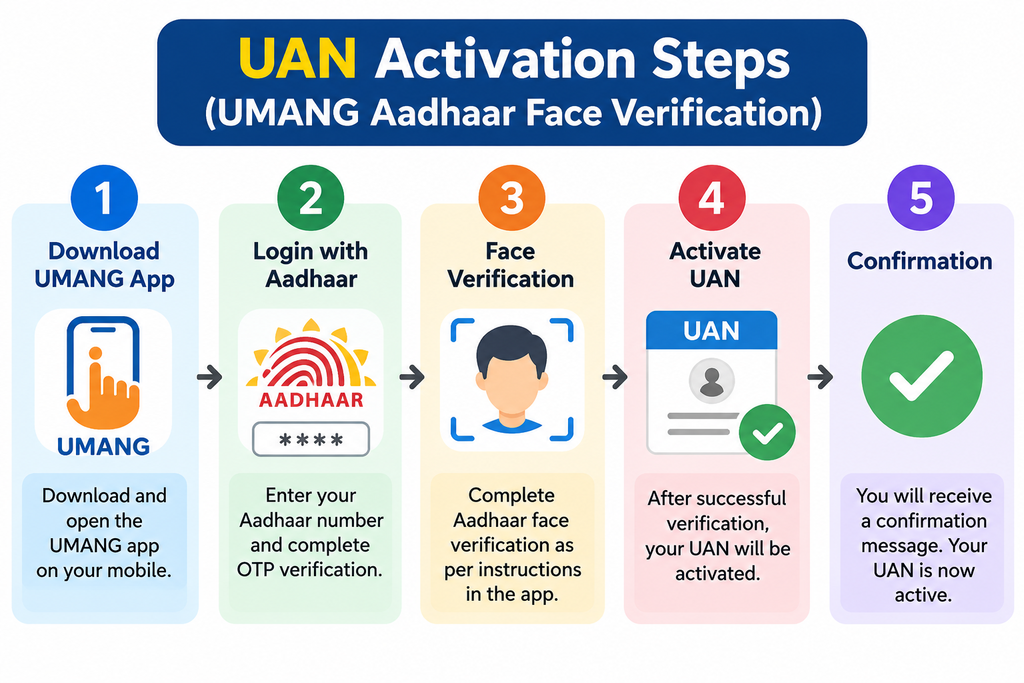
EPFO’s process runs through the UMANG app (the government’s general-purpose app for public services),UAN Activation for Your First Job using Aadhaar-based face authentication rather than an OTP. According to a factohr.com guide and a summary published by indianpaycalculator.in, the steps are:
- Install UMANG and the Aadhaar Face RD app.
- Inside UMANG, go to EPFO Services, then UAN Allotment and Activation.
- Enter your Aadhaar number and Aadhaar-linked mobile number, and give consent for verification.
- Complete the OTP step and the face scan using the Aadhaar Face RD app.
- Your UAN is generated and activated, and sent to you by SMS.
One source describes this as instant. Another, describing an older process, mentions a roughly six-hour wait before you can check your PF balance. Given how recently the process changed, I’d expect the wait to actually happen and not assume either figure until you’ve been through it yourself.
The part worth double-checking: does your employer still do this?
Under the current rule, according to factohr.com, employer-based UAN generation is now limited to international workers and citizens of Nepal or Bhutan. For everyone else joining an Indian company, self-generation through UMANG appears to be the standard route.
That’s a meaningful change from how this used to work, where HR quietly generated your UAN in the background and handed it to you. If your new employer tells you they’ll “set up your PF” without mentioning UMANG or a face scan on your own phone, it’s worth asking directly whether you need to do the UMANG step yourself, rather than assuming it’s been handled.
If the face scan doesn’t work
According to a guide reviewed by Dr. Shrawan Kumar Pathak on RTI Wiki, most failures are environmental rather than account problems: scan in bright, even light, remove glasses or a mask, and hold the phone steady at eye level. If it keeps failing, the likely cause is an outdated photo in your Aadhaar record, which needs correcting at a UIDAI centre before the face match will succeed.
The same source makes a point worth repeating: activation only links accounts that already sit under your UAN. If a previous job’s PF exists under a different member ID that was never merged, activating your UAN won’t automatically pull it in.
If you’ve had a PF account before
If you worked a previous job or internship that contributed to PF, you may already have a UAN. Don’t apply for a new one. Instead, give your existing UAN to your new employer and use the “One Member – One EPF Account” option on the member portal to link your old PF account to it, rather than letting a second, disconnected account pile up under a different number.
The scam warning worth knowing
A message has apparently been circulating claiming that EPFO’s “VISHWAS 2026” scheme drops extra money into employees’ PF accounts. According to indianpaycalculator.in, that’s false: VISHWAS 2026 is a scheme for employers, settling certain penalties, and it doesn’t add a rupee to your contribution or waive anything for you as an employee. If you see this claim, particularly with a link attached asking you to “claim” something, don’t act on it.
More generally: EPFO does not ask for your Aadhaar OTP, your face-scan data, or your bank details through a random SMS or WhatsApp link. The only place to complete this is the UMANG app or the official EPFO member portal.
What I couldn’t verify
I wasn’t able to open the live UMANG app myself, so I can’t confirm the exact current screens, or whether the six-hour wait mentioned by one older source still applies. The description above is built from several explainer sites describing the same government process, not from a single official EPFO document I read directly. Before relying on any specific step, check the current screens in the app, since government app flows do get revised.
Suggested Internal Links
- Salary Slip Components India 2026 Decoded
- NAPS Apprenticeship 2026: The Rule Companies Don’t Advertise
Suggested External References
- UMANG App: https://web.umang.gov.in
- EPFO Member Portal: https://unifiedportal-mem.epfindia.gov.in