DigiLocker for Job Applications It’s the week after you accept an offer. The background verification agency emails asking for your Class 10 and 12 marksheets, your degree certificate, your Aadhaar and your PAN. The physical originals are in a box at your parents’ house in another city. You scan what you can find, the scans come out blurry, and you spend three days waiting for the box to be posted.
DigiLocker exists to make this less painful. But there is one distinction most people miss, and it decides whether your documents are treated as good as originals or as ordinary photocopies.
What the rule actually says
DigiLocker is the government’s document wallet,DigiLocker for Job Applications run under the Ministry of Electronics and Information Technology and operated by the National e-Governance Division. According to the National e-Governance Division’s own explanation, the documents it holds are not just scanned copies but digitally verified records that carry the same legal weight as the originals under the Information Technology Act, 2000.
The specific provision usually cited is Rule 9A of the IT rules governing Digital Locker facilities (the 2016 rules, amended in 2017; different sources name the amendment slightly differently). As quoted on the DigiLocker Wikipedia page, it says two things:
- Issuers may issue, and requesters may accept, digitally signed certificates or documents shared from a person’s Digital Locker account, at par with the physical documents.
- When a document has been issued or pushed into the Digital Locker system by the issuer, and is later accessed or accepted by a requester through its URI, it is treated as if the issuer had shared it directly in electronic form.
The key phrase is issued or pushed by the issuer.
Issued versus uploaded
This is the whole point of the guide. DigiLocker lets you do two different things with documents, and only one of them gets the legal equivalence:
| Issued / fetched document | Document you uploaded yourself | |
|---|---|---|
| Where it comes from | Pulled directly from the issuer’s system (a board, university, or department) | A scan or photo you took and stored |
| Treated as at par with the original? | Yes, under Rule 9A, according to multiple sources | No. It’s a stored copy of your own file. This is my reading of the rule’s wording (“issued or pushed by the issuer”), and a Setu support article draws the same line by describing uploads as a separate option for storage |
| Can a verifier trust it as coming from the issuer? | Yes, that’s the design | Only as much as any photocopy |
If your DigiLocker shows a marksheet you scanned and uploaded, it is a convenient place to keep a file, and nothing more. If it shows a marksheet fetched from the issuing board, it’s the version worth sharing.
What you can typically get issued
The National e-Governance Division lists PAN card, Aadhaar, driving licence, school marksheets, university degrees, and more among the documents DigiLocker can hold. Whether your specific marksheet or degree is available depends on whether your board or university has integrated with DigiLocker. Many have, but not all, and older certificates are less likely to be available. Check inside the app instead of assuming.
Getting set up
DigiLocker registration is built on Aadhaar. Per the guides I checked, you enter your mobile number, verify an OTP, set a security PIN (described as six digits), and complete Aadhaar-based verification. Some sources mention a 1 GB storage limit and a per-file size cap, but these come from secondary sources and may have changed, so I’d verify them in the app.
Sharing with an employer or verification agency
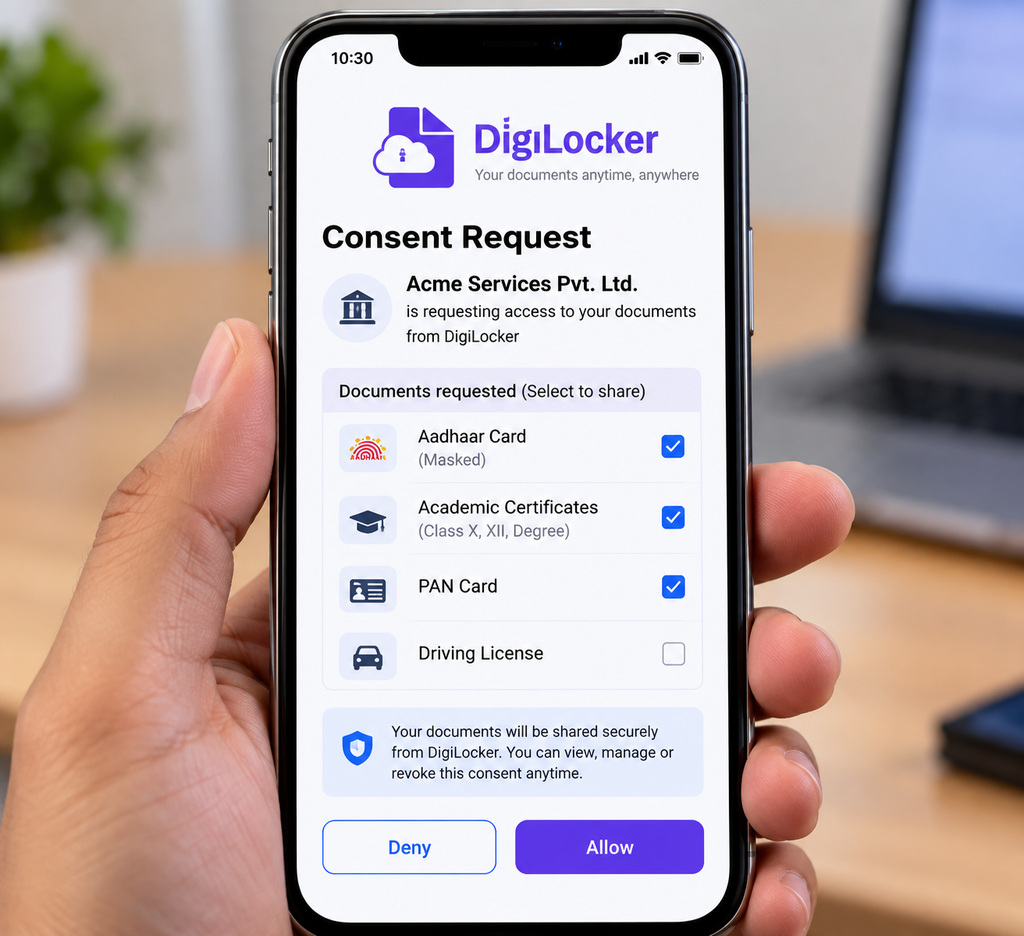
The rules require your explicit consent before a document is shared. According to the NeGD, your documents aren’t accessed in the background. So a genuine requester, such as a verification agency, uses a consent request you can see and approve.
That has a practical safety side:
- A real request goes through DigiLocker’s own consent screen. If someone asks you to read out your OTP or tell them your security PIN, that’s not a normal verification flow, and it’s a red flag whoever they claim to represent.
- Verification agencies and employers should contact you from their own official domains, as covered in the guide on checking job offers.
The limits
- The rule permits acceptance. It doesn’t force it. Rule 9A says requesters may accept these documents. Some employers, universities, or offices still insist on physical copies or their own forms. Ask what your employer accepts before assuming.
- Not every document exists in DigiLocker. Coverage varies by issuer. Missing certificates mean you’re back to originals and attested copies.
- Your registered mobile number matters. Since sign-up depends on Aadhaar OTP, if your Aadhaar-linked number is old or lost, sorting that out comes first.
- I couldn’t test the live app. Screens and features change, so treat the setup steps as a description of what sources report, not a click-by-click manual.
A practical order of operations
- Register and see which of your documents are available as issued.
- For anything missing, ask your board or university whether it offers DigiLocker issuance.
- Keep uploaded scans as backup, and be clear in your own mind which are which.
- When a verifier asks, find out first whether they accept DigiLocker sharing, then share through the consent screen.
Suggested Internal Links
- Background Verification India 2026: What Actually Gets Checked
- Job Offer Scams 2026: What a Real Offer Actually Looks Like
Suggested External References
- DigiLocker: https://www.digilocker.gov.in
- National e-Governance Division: https://negd.gov.in